Interviewers
Capture a recorded conversation without replaying every answer while drafting notes.
Start with a searchable transcript, then select quotes and polish the final story.
Recording converter
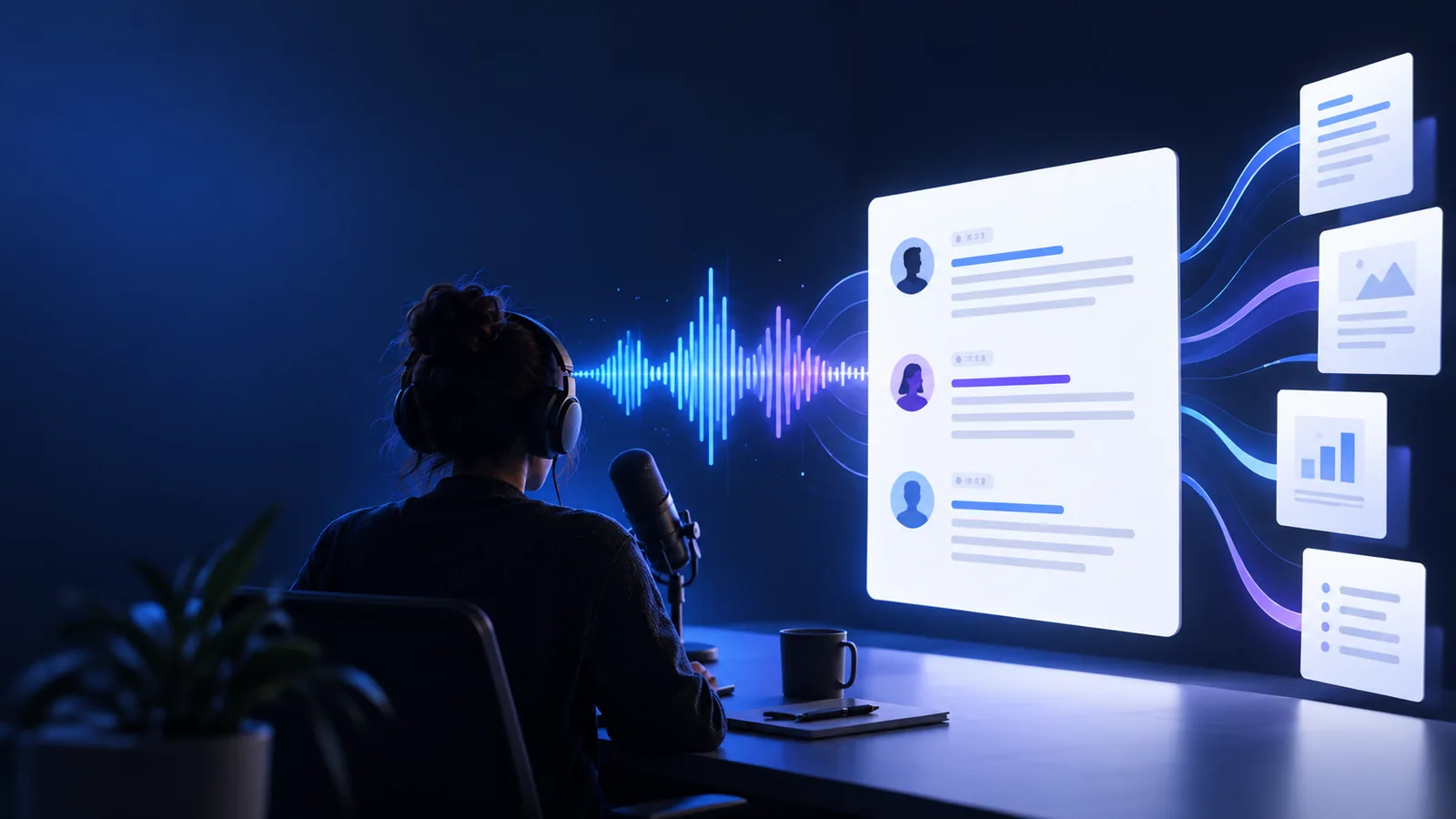
Transcribe audio recording to text from interviews, meetings, lectures, and voice notes. Upload a recording, review the generated transcript, and move from listening to editing in one focused workflow.
Practical uses
Text makes spoken information easier to search, quote, share, and reshape for the next task.
Capture a recorded conversation without replaying every answer while drafting notes.
Start with a searchable transcript, then select quotes and polish the final story.
Turn lectures, field recordings, or study notes into text for review and citation.
Scan key passages quickly and organize ideas alongside your written research.
Convert meeting recordings into a written reference for decisions, tasks, and follow-ups.
Share a readable record with colleagues who were not in the room.
Reuse spoken material as show notes, captions, summaries, or short-form content.
Move from an audio recording to an editable draft without starting from a blank page.
Simple workflow
Keep the process focused: provide the recording, let the tool create a draft, then verify the details that matter.
Choose a clear audio file and describe the output you need, such as speaker labels, paragraphs, or a concise transcript.
The transcription process identifies speech and lays it out as editable text so you can work from the recording without constant replay.
Check names, technical terms, and unclear passages, then copy the cleaned transcript into notes, documents, or a publishing workflow.
Explore formats
Choose the route that matches the file you already have and the format you want at the end.
File-to-text check
A recording preserves the original sound; a transcript makes its spoken content easier to inspect and edit.
| Audio recording | Text transcript | |
|---|---|---|
| Primary form | Sound stored as an audio file | Words represented as editable text |
| How you review it | Listen, pause, and replay sections | Scan, search, and read sections directly |
| Speaker cues | Voice identity is heard in the source | Labels or paragraph breaks may be added to clarify turns |
| Tone and delivery | Preserves emphasis, pauses, pitch, and background sound | Usually records the words, not every vocal detail |
| Editing | Requires an audio editor for precise changes | Can be revised like notes or a document |
| Sharing | Recipients need a player and time to listen | Recipients can read, quote, and search the content |
| Best next step | Keep as source evidence or revisit unclear speech | Summarize, publish, caption, or file the content |
Output preview
The source recording contains the full performance. The transcript turns the spoken message into a working draft you can review and reshape.
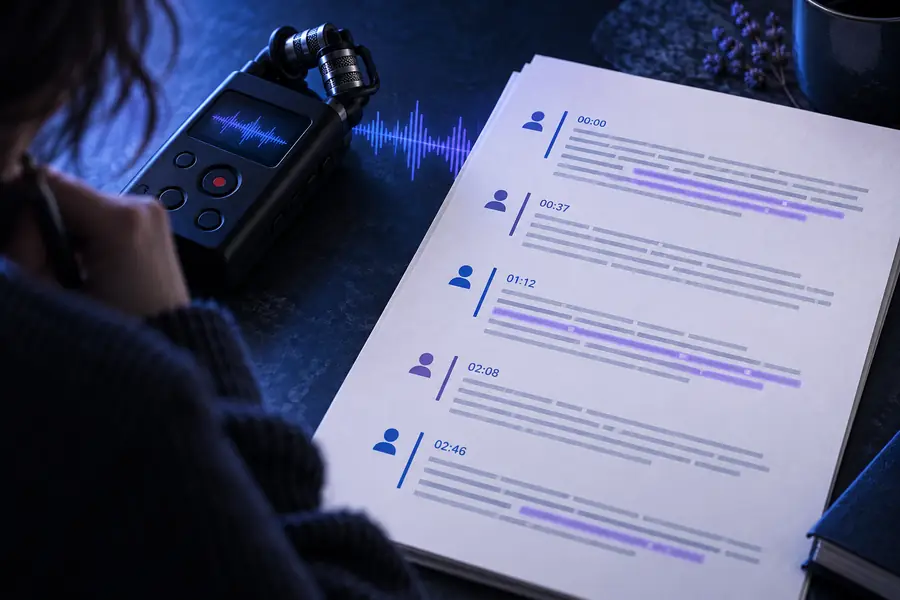
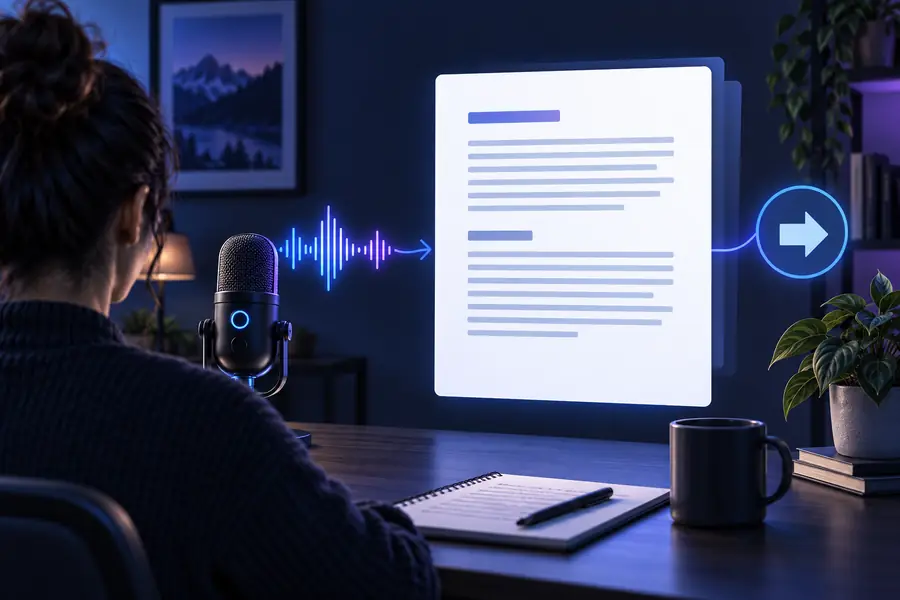
The transcript is a draft: verify names, numbers, and specialist terms.
BEFORE · AUDIOAFTER · TEXTKnow the limits
A transcript is useful working material, but it should not be treated as a perfect substitute for the original recording.
Heavy background noise, clipped audio, overlapping voices, or long silence can leave gaps or uncertain wording.
What to do instead
Use the clearest source available and replay uncertain sections against the original.
Names, acronyms, product terms, and uncommon vocabulary may be rendered phonetically or inconsistently.
What to do instead
Search for likely errors and compare them with the recording or a supplied vocabulary list.
When people interrupt one another or sound alike, speaker separation may be incomplete.
What to do instead
Review turn-taking manually and add labels where attribution affects meaning.
Pauses, emotion, emphasis, room sound, and vocal nuance may not appear in plain text.
What to do instead
Keep the original recording alongside the transcript when tone or context matters.
Start with your recording
Hand off an audio recording and get a text draft you can review, search, and adapt for the next stage of your project.
Variant FAQ
Answers to common questions about converting a recorded voice source into written text.
It means converting the spoken content in a saved recording into written words. The result is a text draft that can be read, searched, edited, quoted, or placed into another document.
Yes. Interviews, meetings, lectures, voice notes, and similar recordings are common transcription sources. Clear speech and limited background noise generally make the resulting text easier to review.
It is safer to treat the transcript as a draft rather than a final record. Review names, numbers, technical terms, speaker changes, and any passage that sounds unclear in the source recording.
Use a recording with distinct voices and minimal overlap when possible. After the draft is created, check speaker turns manually and add or correct labels wherever attribution matters.