Interviewers
You have a conversation recording and need a searchable draft for quotes, notes, or a final report.
Create a transcript first, then use Microsoft Word headings and comments to organize the material.
Word workflow
Use this practical workflow to transcribe audio to text microsoft word documents can hold, revise, and share. Prepare the recording, create a clean transcript, then bring it into Word with less formatting repair.

Related formats
Choose the route that matches your source file, then move the finished text into Microsoft Word for editing and review.
Choose your source
Different people begin with different recordings, but the useful output is the same: readable text that can be pasted, corrected, and styled in Word.
You have a conversation recording and need a searchable draft for quotes, notes, or a final report.
Create a transcript first, then use Microsoft Word headings and comments to organize the material.
You want to turn a lesson or presentation recording into a document for learners and editors.
Use a transcript as the starting copy, then add section breaks, terminology, and supporting links in Word.
Your source is a phone export, voice memo, or interview saved as an MP3 file.
Convert the audio into a draft that can be cleaned up and formatted in Microsoft Word.
You need to turn spoken updates into a document that colleagues can review and archive.
Keep the first transcript as a working copy, verify names and numbers, and publish the corrected Word version.
Import steps
A simple handoff keeps the transcript readable and makes the editing stage easier to audit.
Use the clearest available recording, trim long silent sections when practical, and note unusual names, terms, or speakers before conversion.
Run the audio through the transcription tool and review the output for missing words, speaker changes, punctuation, and numbers.
Copy the verified text into a new Microsoft Word document, apply heading styles, add speaker labels, and save a clearly named working copy.
Visual check
The before-and-after view shows why a quick cleanup pass matters: raw text may be accurate enough to start, but document-ready copy needs structure.

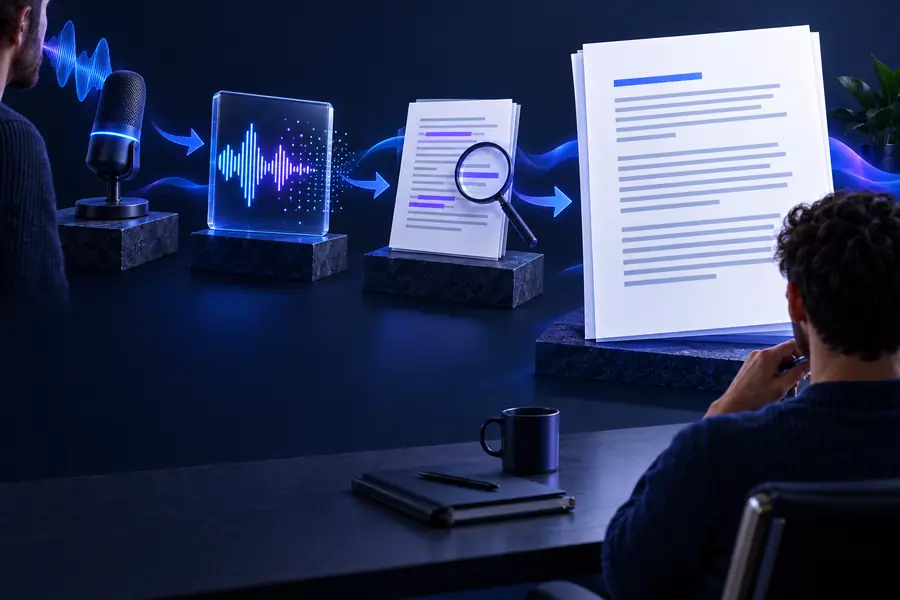
Compare structure before final formatting.
Raw transcriptWord-ready draftHonest limits
The route saves time, but it does not remove the need for judgment. These are the issues most likely to survive an initial copy-and-paste.
A transcript can merge speakers or assign the wrong person when voices overlap or the recording has little separation.
What to do instead
Listen to the uncertain passages and replace generic labels before sharing the document.
Long pauses, interruptions, lists, and unfinished sentences may produce awkward commas or paragraph breaks in Word.
What to do instead
Read the document once for meaning, then apply Word styles and paragraph breaks consistently.
People, products, acronyms, and specialist vocabulary are easy to misrecognize, especially in noisy audio.
What to do instead
Keep a reference list beside the document and search for every uncertain term.
A polished Microsoft Word page can still contain omitted words, incorrect numbers, or misunderstood phrases.
What to do instead
Verify important claims against the audio before treating the file as the final record.
Start with audio
Give the tool a focused description of the job, create the transcript, and bring the result into Microsoft Word for the human review that makes it publishable.
Variant FAQ
Microsoft Word includes transcription features in some versions and account configurations, but availability can vary. A separate transcript can also be copied into Word when you need a flexible editing workflow.
Use the clearest recording available and avoid unnecessary background noise or overlapping speech. Common formats such as MP3 and recorded voice files can be prepared first, then moved into a Microsoft Word document for cleanup.
Keep speaker labels in the transcript before copying it into Word, then check each change of speaker against the recording. If labels are uncertain, use neutral placeholders until the audio review is complete.
Plain transcript text may not carry useful headings, spacing, or speaker formatting into Microsoft Word. Paste it into a working document, remove stray line breaks, and apply Word paragraph and heading styles afterward.
Usually not. Review names, numbers, punctuation, technical terms, and important statements against the audio before sending the document to readers or using it as an official record.