Students
A student uploads a lecture or study note and needs the important wording in a form that is easier to search than an audio timeline.
Review key passages, build a study outline, and revisit exact wording without replaying every minute.
Transcribe audio to text online when you need a searchable draft without installing desktop software. Upload a recording, review the result, and turn spoken ideas into notes you can actually use.
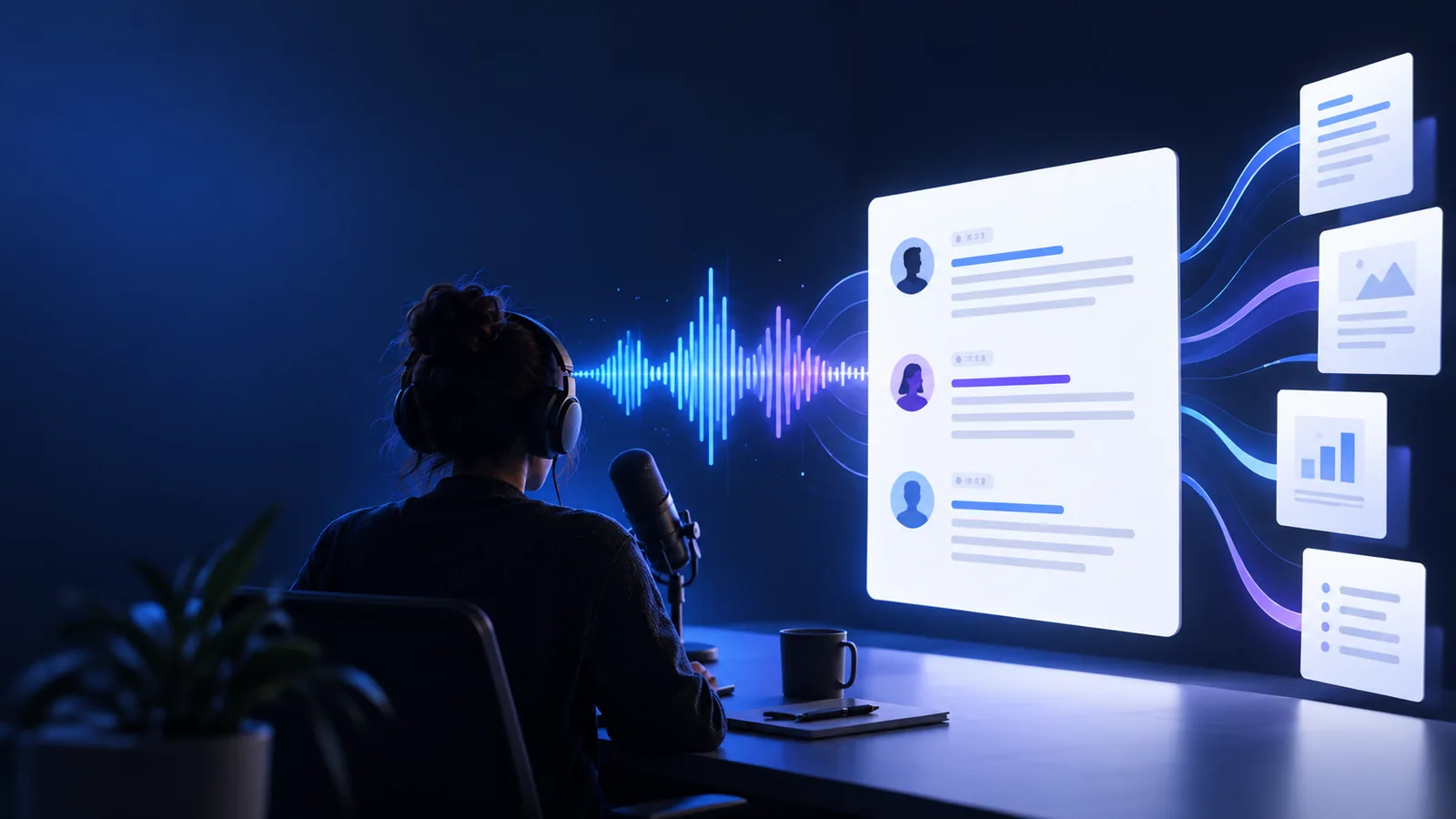
An online workflow keeps transcription close to the moment you need it. Different listeners can start with the same recording and finish with text shaped for their next task.
A student uploads a lecture or study note and needs the important wording in a form that is easier to search than an audio timeline.
Review key passages, build a study outline, and revisit exact wording without replaying every minute.
A journalist or researcher has a recorded conversation and wants a working transcript before drafting questions, quotes, or findings.
Scan the conversation, locate useful answers, and mark sections for closer listening.
Someone records an idea on a phone but prefers a browser workspace for organizing and editing the resulting text.
Move from a spontaneous voice note to a readable draft with fewer manual steps.
A team starts with an MP3 interview, podcast segment, or voice memo and needs text for captions, summaries, or editorial review.
Create a useful first draft, then polish names, punctuation, and formatting before publication.
The online path is intentionally simple: prepare a clear source, let the tool produce a draft, and make a human pass before sharing it.
Select the audio file you want to work on and identify the purpose of the transcript, such as notes, quotes, captions, or a searchable archive.
The browser workflow processes the recording into written text so you can inspect the result in one place instead of switching between a player and a blank document.
Correct names, technical terms, punctuation, and speaker changes. Then reuse the cleaned text in notes, documents, summaries, or a follow-up workflow.
Choose the route that best matches your device, source file, or preferred destination.
The useful change is not just a different file type. It is the shift from listening for every detail to scanning, correcting, and organizing the words.

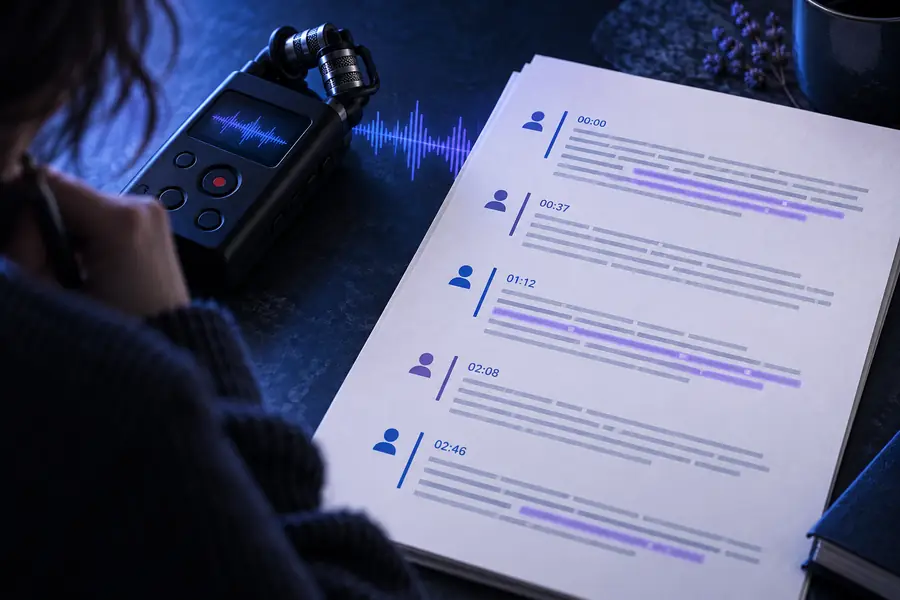
A generated transcript is a starting draft; review it before treating every word as final.
Before: audio timelineAfter: working transcriptBoth approaches can produce useful notes, but they place the effort in different parts of the job.
| Online transcription workflow | Manual transcription | |
|---|---|---|
| Starting point | Upload an existing recording in the browser. | Play the recording and type into a separate document. |
| First draft | A written draft is created before your editing pass. | The transcript grows only as you listen and type. |
| Review focus | Spend time checking names, punctuation, and unclear phrases. | Repeat listening, pausing, rewinding, and typing throughout. |
| Searchability | Scan the draft for terms and passages once text is available. | Search is limited until enough of the recording has been typed. |
| Control over wording | You decide what to correct, remove, or format after the draft. | You control every word while creating the transcript. |
| Best fit | Recorded meetings, interviews, lessons, notes, and first drafts. | Short clips, difficult audio, or work requiring deliberate word-by-word listening. |
| Human review | Still needed for accuracy, speaker labels, and specialized language. | Built into the process because you type what you hear. |
Online transcription is useful, but it is not a substitute for source quality or human judgment. Knowing the boundaries helps you plan a better review.
Background music, traffic, room echo, overlapping speakers, and distant microphones can produce omissions or incorrect wording.
What to do instead
Use the clearest available recording, reduce competing noise where possible, and replay uncertain passages during review.
Names, acronyms, medical language, product codes, and uncommon places can be written incorrectly even when the surrounding sentence is clear.
What to do instead
Keep a reference list nearby and check terminology against the original audio or your source documents.
A conversation with interruptions or several voices may not separate every speaker perfectly in the first draft.
What to do instead
Add or revise speaker labels while listening through the transcript.
The output preserves spoken content; it does not automatically decide what matters, verify claims, or reflect your preferred editorial style.
What to do instead
Use the draft as source material, then summarize, fact-check, and format it for its intended audience.
Bring an audio file into a browser workflow and start with a written draft instead of a blank page. The result is easier to scan, correct, and carry into the next stage of your work.
Answers to common questions about using an online audio-to-text workflow.
Choose an audio recording, upload it through the browser workflow, and wait for a written draft. Read through the result afterward to correct names, punctuation, speaker changes, and any unclear phrases.
Yes. Interviews, meetings, lectures, and voice notes are all natural starting points for browser-based transcription. Clear audio and limited overlap between speakers generally make the review process easier.
It can provide a useful first draft, but it should not be treated as final without review. Noise, accents, overlapping speech, proper names, and technical vocabulary can all require corrections.
Compare uncertain lines with the original recording and correct them in your editing pass. Pay particular attention to names, numbers, acronyms, and places, since these details can change the meaning of a sentence.
A browser-based workflow is designed for that use case: you bring the recording to an online tool instead of setting up a desktop transcription program. You still need to review the generated text before relying on it.